Frame time6.8 ms
system view
CPU34% GPU17% RAM47% MODEOBSERVE
Section Senytra
Inspect mode — drag to rotate, use the wheel to zoom
Senytra System status

A quick view of the system areas worth checking.

Senytra chibi
See what’s running. Decide what to change.

See your PC.
Then decide
what to change.

Senytra brings system status, cleanup, startup items and tweaks into one place. You can review an action before you apply it.

Setup

Start with a
quick setup.

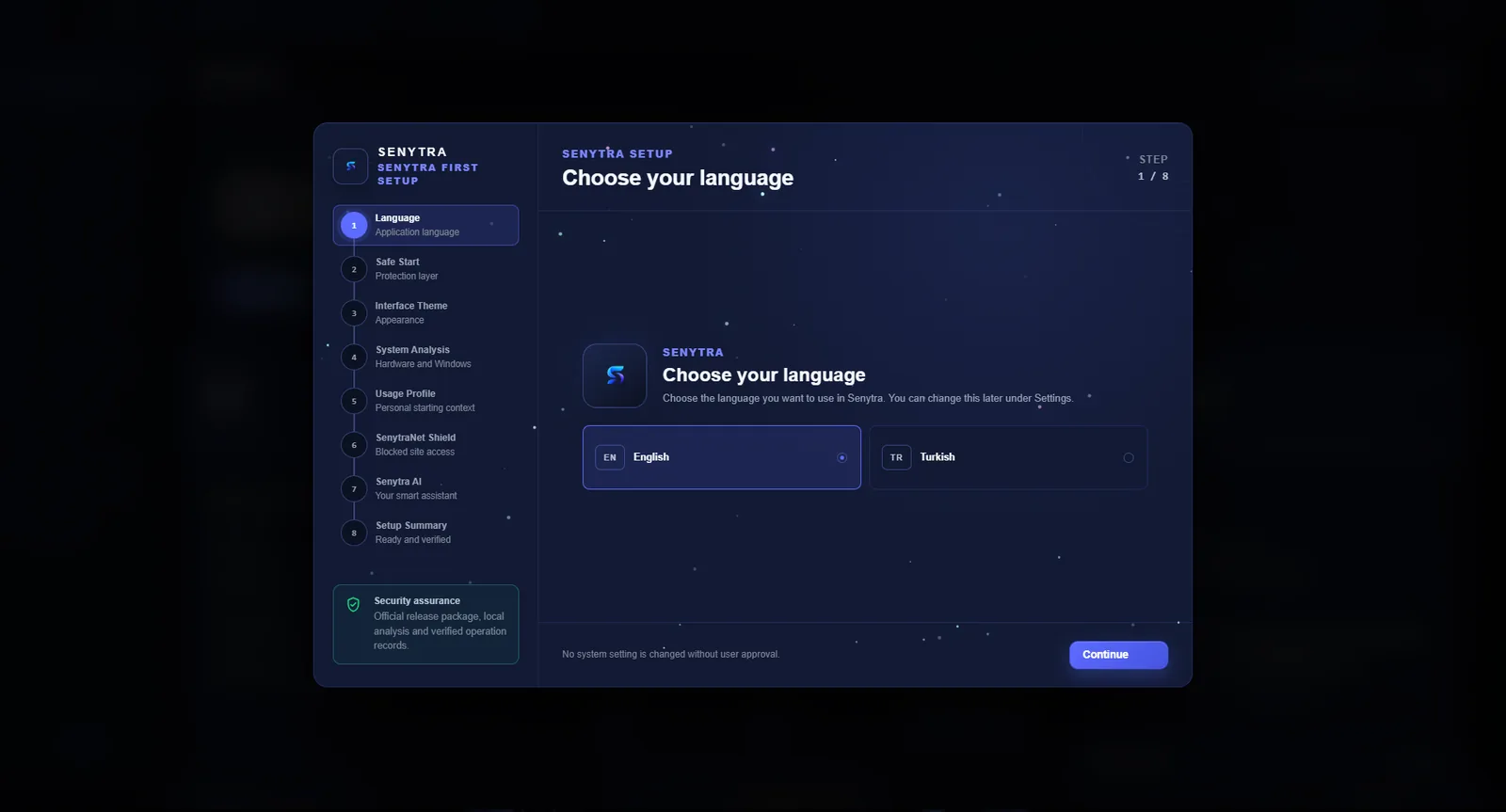
Choose the basics on first launch, then let Senytra check the system. Nothing is applied just because a scan found it.

Senytra
Senytra setup screen

Tell Senytra what feels wrong.

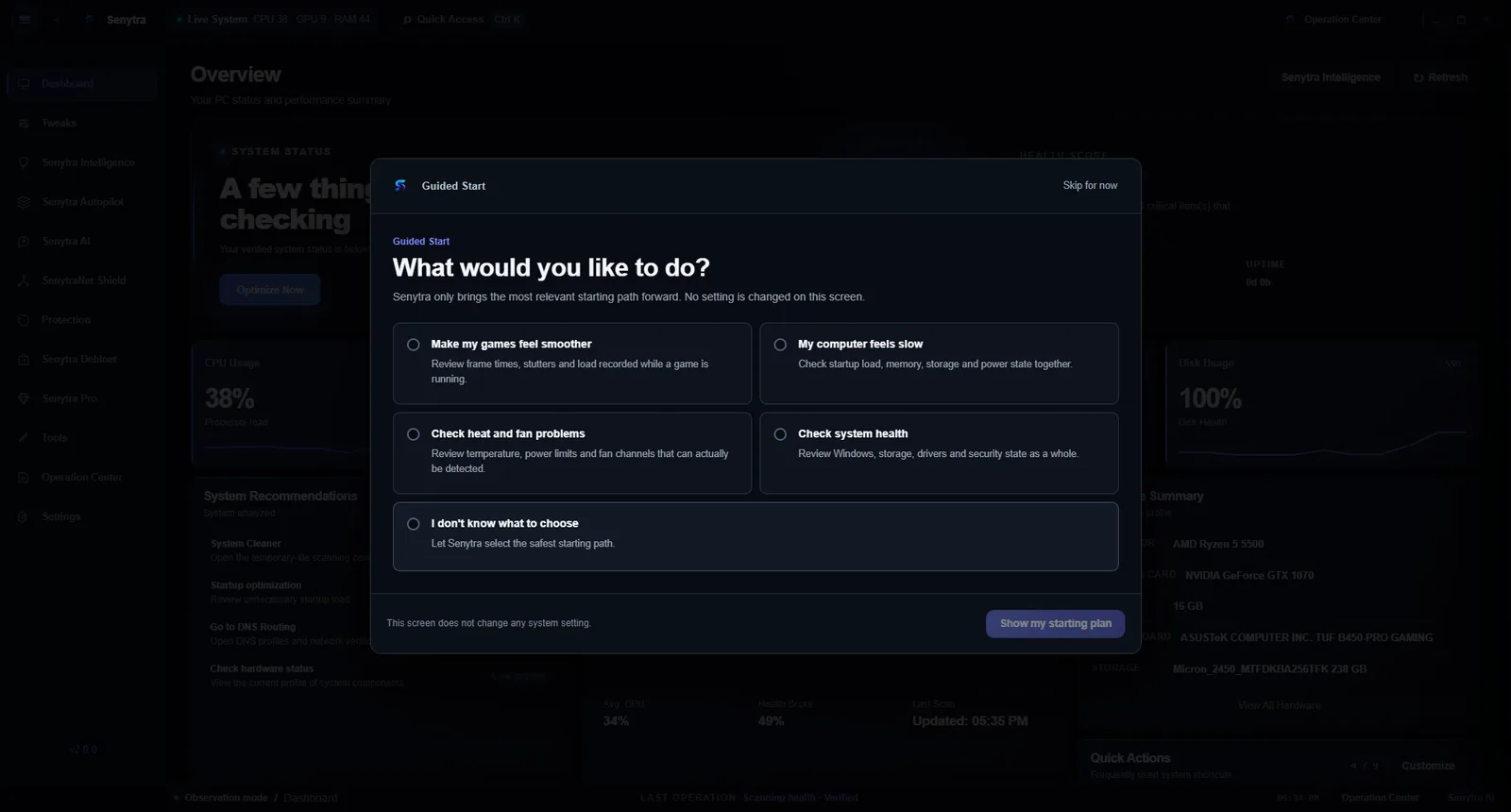
Guided start
Gaming
Check stutter Frame time / load / background activity
Slow startup
Check startup Startup apps / memory / power
Not sure
Run a general check A broader look at the system
Senytra
Senytra guided start screen
Overview

Get the whole
picture first.

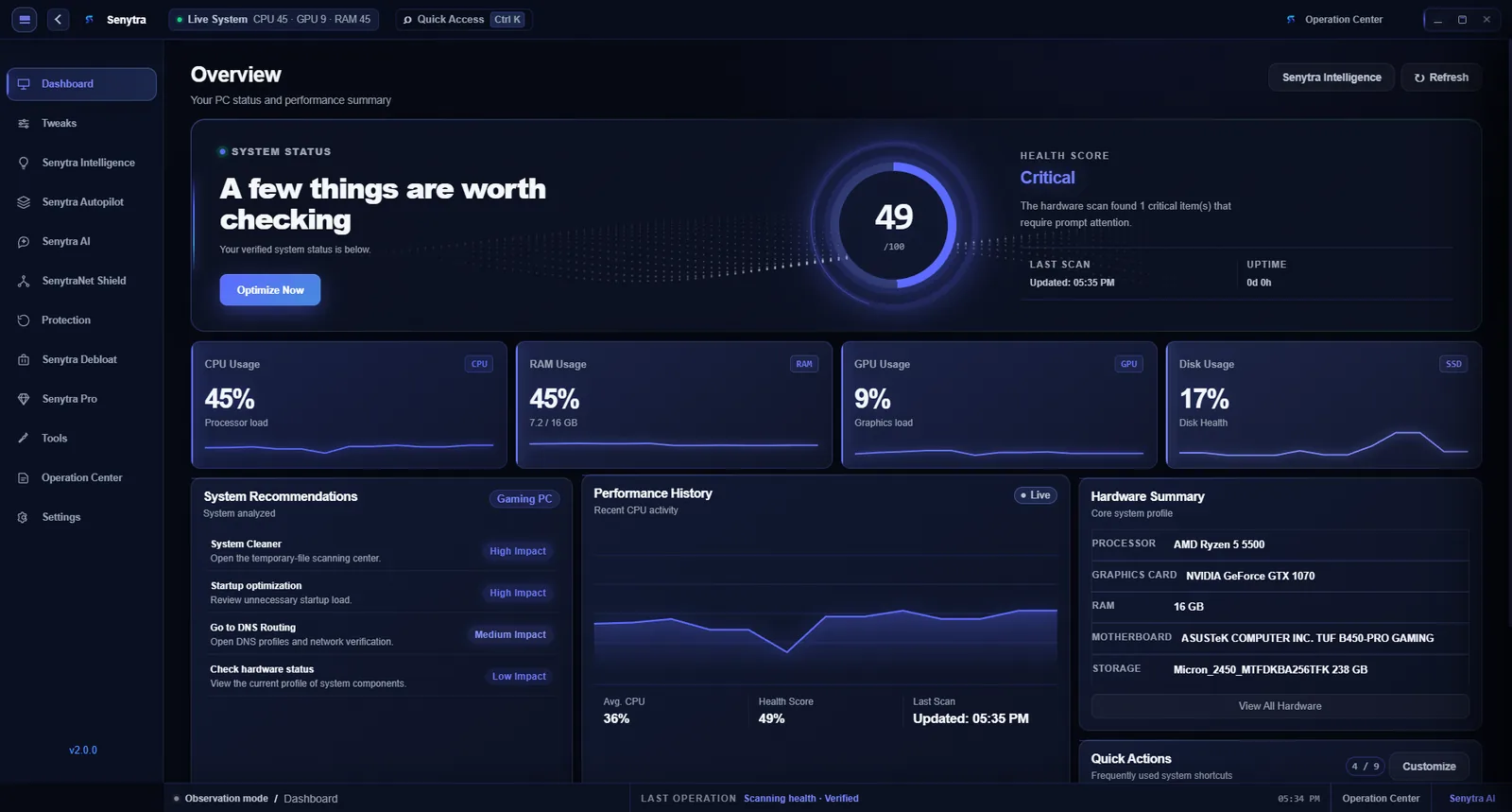
CPU, memory, GPU, storage and recommendations stay in one place, so you can see why something is being suggested before you act on it.
Senytra
Senytra system overview
Live system viewDemo

Watch the
system load change.

This demo gives the dashboard some movement: CPU, memory, GPU and startup activity update while the page is open.

Example values only
System activity 00:00:00
CPU34%
RAM5.8 GB
GPU12%
Startup6
Background CPU, recent activity
Items to review
Cleanup
Startup items

Compare the
before and after.

Move the divider to see the example state before and after cleanup. The values below follow the same position.

Before cleanup Example system state
Background services23running
Temporary files3.8 GBtemporary data
Background CPU18%system load
Memory use7.2 GBin use
Background servicesACTIVE
Telemetry hostbackground diagnostics
Running
Xbox servicesgaming background tasks
Running
Delivery cacheupdate distribution
Running
Search backgroundindexing activity
Running
Storage cleanup3.8 GB
Temporary files1.7 GB
Application cache1.2 GB
Logs and leftovers0.9 GB
After cleanup Example cleaned state
Services stopped12background tasks
Temporary files0 Bcleanup complete
CPU headroom+12%background reduction
RAM reclaimed+1.6 GBavailable memory
Background servicesOPTIMIZED
Telemetry hostnot needed for this profile
Stopped
Xbox servicesdisabled outside gaming use
Stopped
Delivery cachebackground load removed
Stopped
Search backgroundreduced for this profile
Reduced
Storage cleanup0 B
Temporary files0 B
Application cache0 B
Logs and leftovers0 B
50%
Values at the divider Example only
Background services17active
Temporary files1.9 GBremaining
Background CPU12%example load
Memory use6.4 GBin use
Inside SenytraInterface

A closer look
at the app.

Switch between a few real product views to see how the same information is laid out inside Senytra.

Senytra system overview Senytra tweaks Senytra guided start
System overview Senytra interface
Tweaks

Know what a
tweak does.

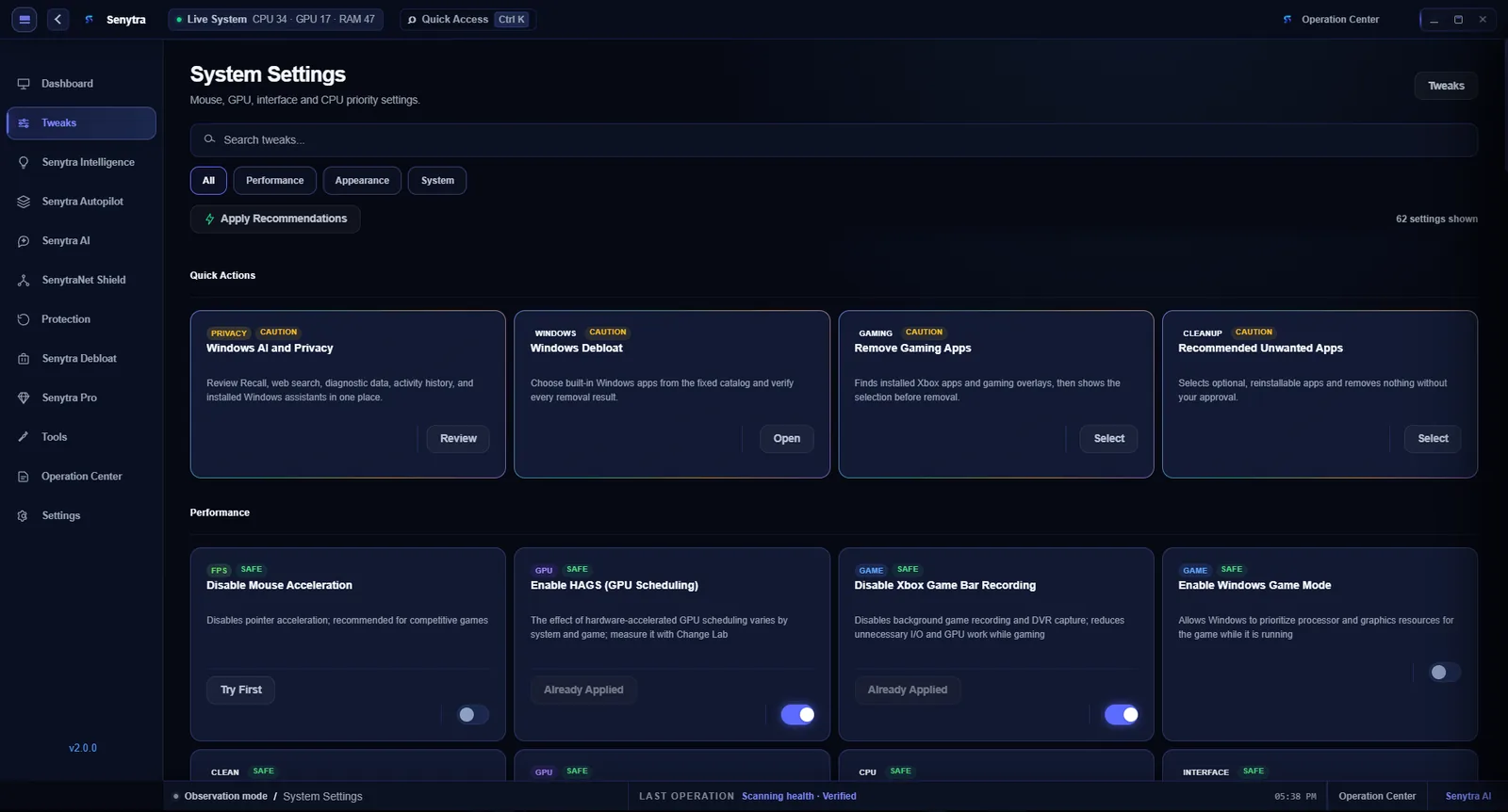
Performance, appearance, system and privacy settings are grouped by purpose. Each item explains the change before you apply it.
Senytra
Senytra tweaks screen
What Senytra can changeReview first

See exactly
what’s in scope.

You should not have to guess what an optimizer is touching. These are the kinds of Windows settings Senytra can put in front of you for review.

Startup apps
Items to review that launch with Windows and decide what should stay active.
Review firstRecorded
Background services
Review services that add background work and see why they are being considered.
Review firstRestore available
Power settings
Keep power-plan changes separate and readable instead of burying them in a preset.
Review firstRecorded
Temporary files
See what can be cleaned and how much space is involved before files are removed.
Preview firstRecorded
Visual effects
Keep appearance choices separate from performance changes so the trade-off is obvious.
Review firstRestore available
Privacy settings
Review privacy-related Windows settings without mixing them into unrelated tweaks.
Review firstRecorded

Review it before it runs.

Your choice
Setup
You choose No silent changes
Operations
See it first Check the action before applying
Records
Keep a record See what ran later
Undo and restoreHistory

Keep a record
of what changed.

The history shows what ran and when. Where a change supports restoring, you can review that path from the same place.

Recent changesExample session
Restore point createdBefore system changes
00:00
Power setting reviewedBalanced profile kept
00:12
2 services stoppedBackground load reduced
00:19
Temporary files cleaned3.8 GB removed
00:31
Review it.
Restore it when supported.

Not every Windows change has a perfect one-click undo. Senytra keeps supported restore options and the change history visible instead of pretending otherwise.

Why SenytraThe approach

Know what’s
happening.

The idea is simple: show the system, explain the change and keep a record of what ran.

01See the current state

System information stays visible while you decide what is worth changing.

02Review before applying

A setting should make sense before you press the apply button.

03Keep the history

Important actions stay in the change history so you can check them later.

04Keep it in one place

System status, recommendations and controls are easier to follow when they are not scattered across tools.

Keep Windows
under control.

See the system, review the change, then decide whether to apply it. That’s the whole idea.

PlatformWindows 10 / 11
Architecturex64
RestoreWhere supported
HistoryChange log
See it. Review it. Then apply it.
Senytra chibi